


Online Application System Guide
Step-by-step guide for submitting an application using the Online Application System
Step 1 – Create Account
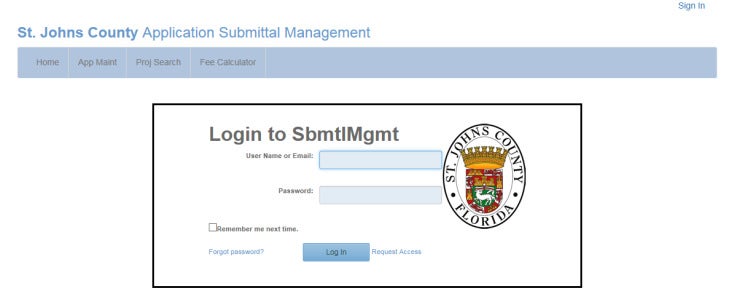
First time Applicants will need to click the “Request Access” tab to set up a user account. Once a user account has been created, the user will be able to Sign In to submit new applications or manage existing applications.
Suggestion: Companies with more than one person submitting applications may want to set up a general company user account to enable tracking of all online applications submitted by the company. The Online Application System has been set up to identify the specific contact person for each application, and will send application status e-mails to the e-mail address listed as the contact person on the application.
Step 2 – Submit or Manage Applications
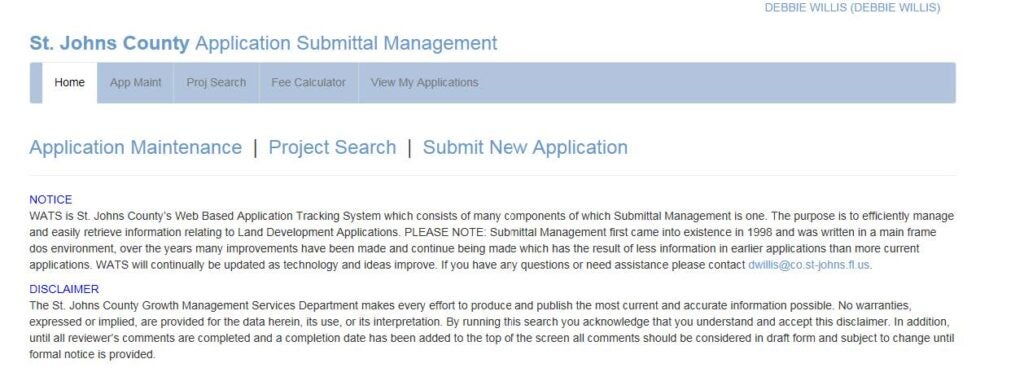
Once signed in, Applicants will be able to manage their existing applications (View My Applications) and submit new applications (Submit New Application)
Step 3 – Project Information
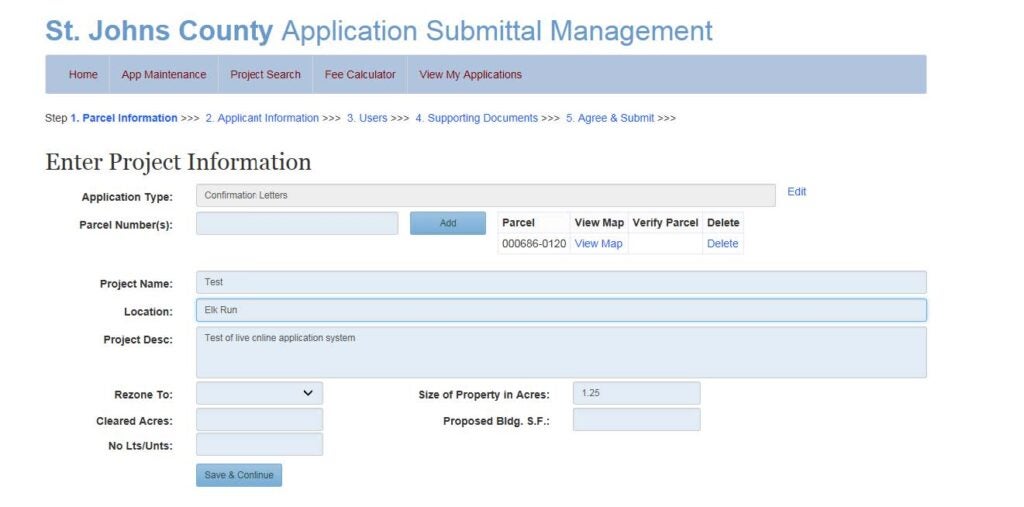
Once the Applicant picks the application type, the next screen is the Project Information Screen (see below snapshot.
Step 4 – Applicant Information
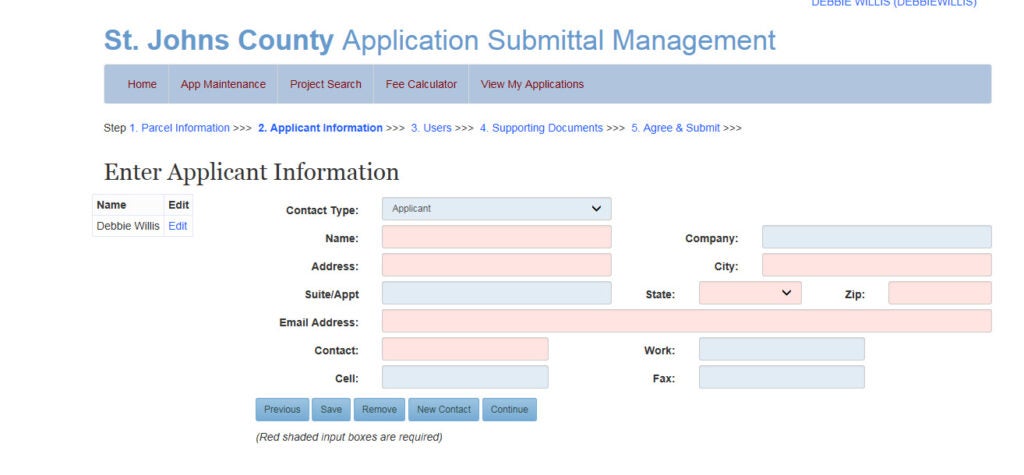
The next screen is the Applicant Information screen. If the Applicant does not fill in one of the required fields, an error message prompts.
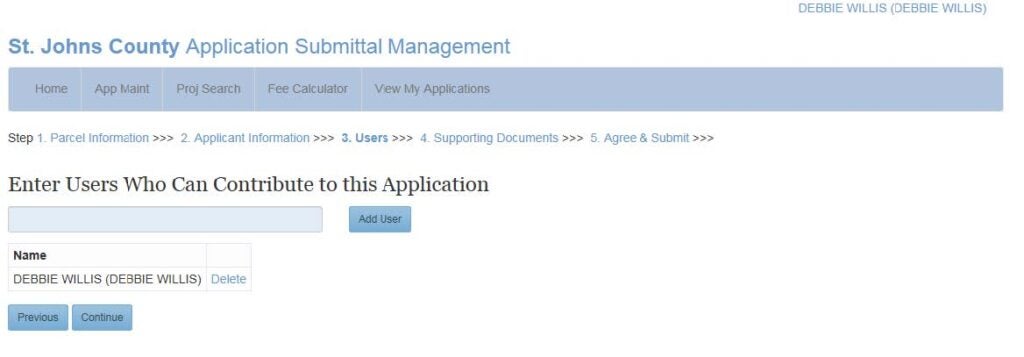
Step 5 – Grant Access
The next screen allows the Applicant to grant access to others (ie: Property Owner, Engineer, Planner, Survey Company). This enables others who have set up a user id to assist in uploading the required documents for the application.
Step 6 – Upload Documents
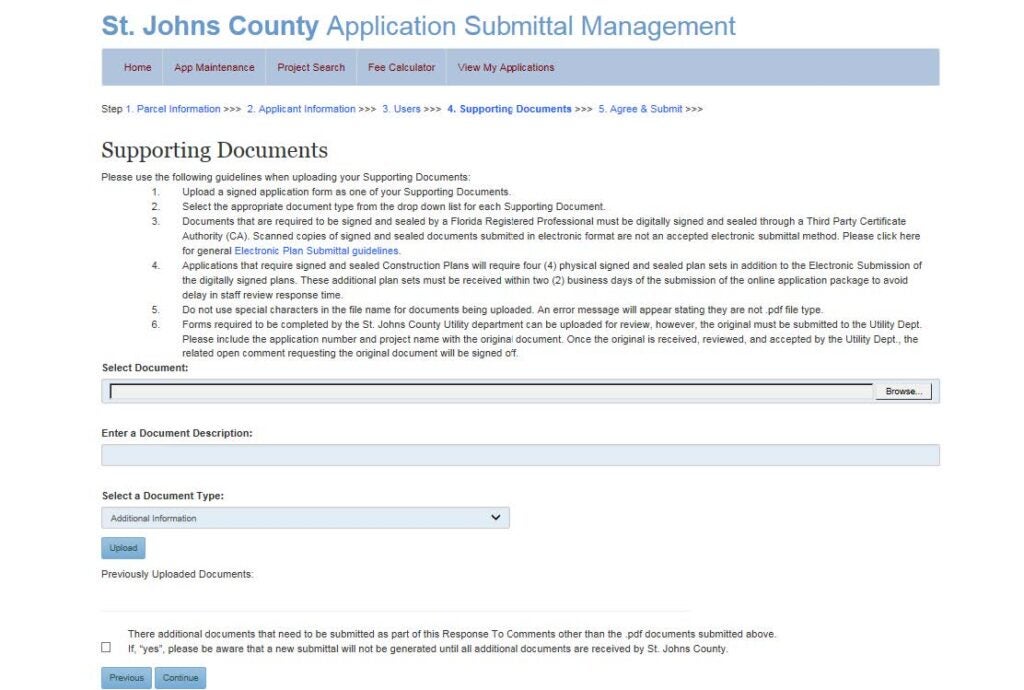
The next screen allows the Applicant to upload supporting documents. The documents must be in .jpg, .pdf, or .tiff format). A completed and signed application form will be one of the required documents. Note: Do not use special characters, such as . or -, when naming the documents to upload into the system. Documents with special characters in the name may not upload.
Step 7 – Submission
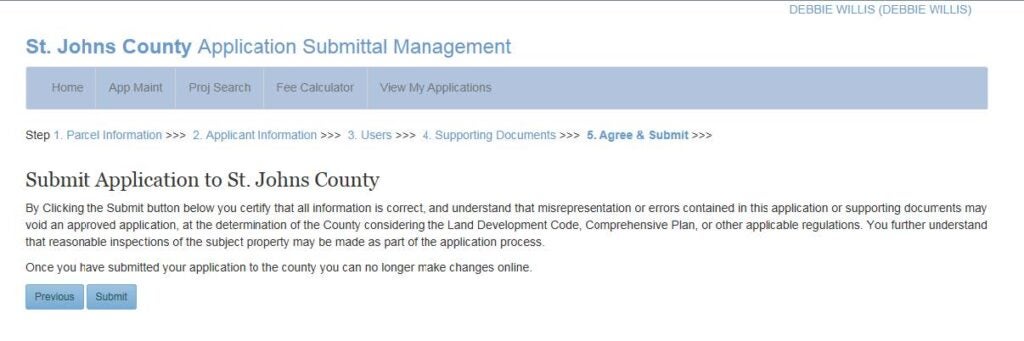
The final screen is the application submission screen.
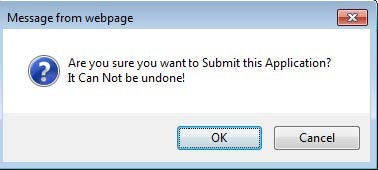
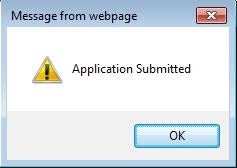
A message box will appear when the Applicant clicks the “Submit” button, and then a final message box will notify them that the application has been submitted.
Step 8 – SJC Staff Review
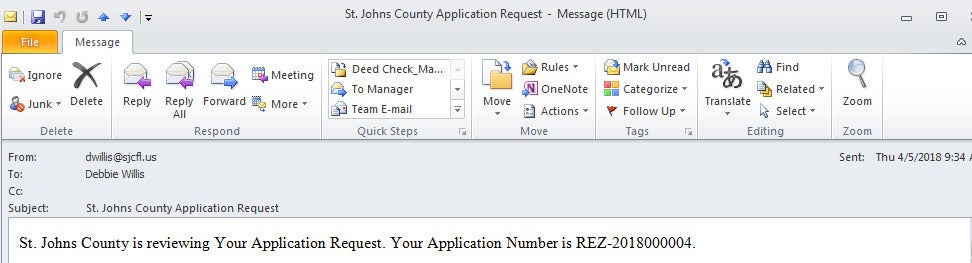
St. Johns County staff will review the application and supporting documents. Once staff reviews the application package, a system e-mail is generated to the Applicant notifying them that staff is reviewing the application and also providing them the Application Number.
Step 9 – Staff Process
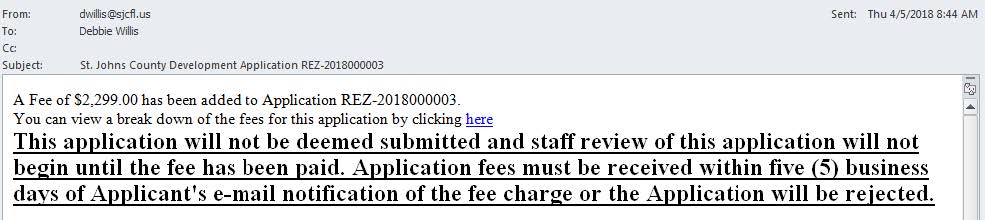
Staff will process the application the same as in the past, calculate application fees and add the fees to an open ticket. Once they add the fees to an open ticket a system generated e-mail will be sent to the Applicant notifying them of application fees that need to be paid (see below snapshot)
Step 10 – Login Screen
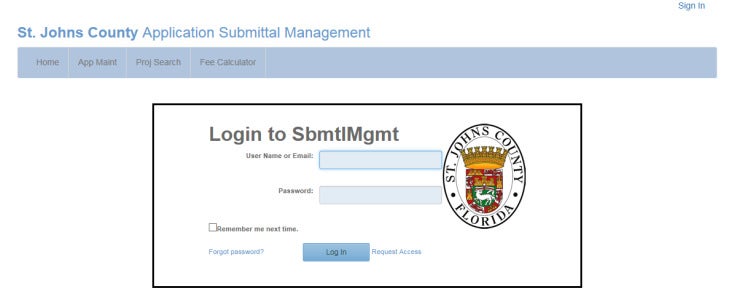
The Applicant can click the link on the e-mail generated by the application fee open ticket and it will take them to the login screen for them to log on to their user account.
Step 11 – Access Fees
The Applicant can access the fees by going into the “View My Applications” tab and click on the “Fees Due: Click to Pay Now” link for the application they want to pay fees on.

Step 12 – Pay Fees
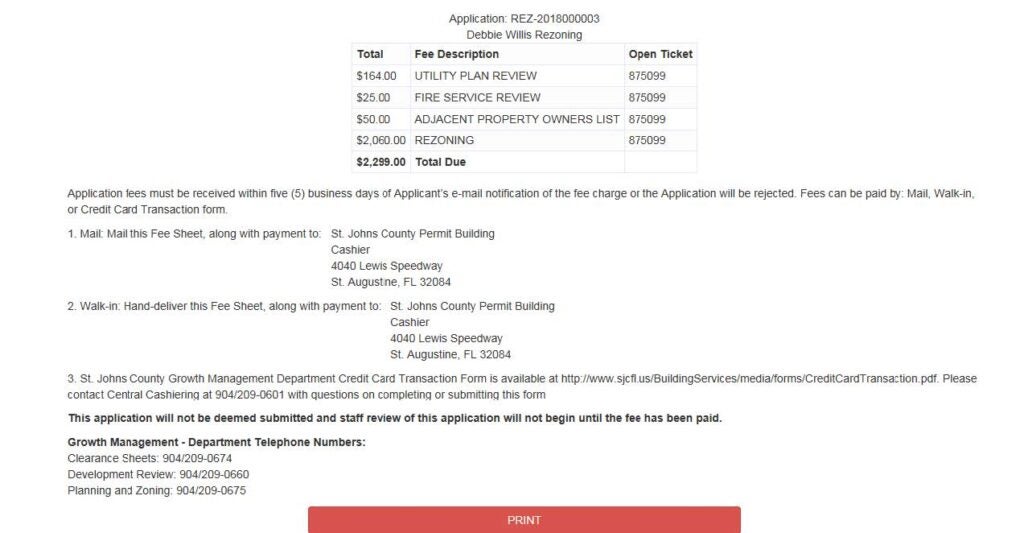
When the Applicant clicks the “Fees Due Click to Pay Now” link, a breakdown of the fees will display that includes instructions for methods of payment. A “Print” button has been created for them to easily print the fee sheet to submit with their payment.
Step 13 – Unpaid Fees Rejection
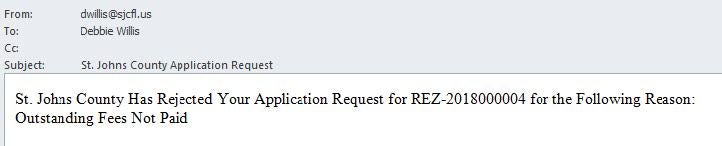
If the fees are not paid, St. Johns County staff can reject the application for non-payment. This will generate a system e-mail to the Applicant notifying them that the application was rejected because of non-payment. See below snapshot.
Note: Applicants who utilize an e-mail verification system will need to add the following St. Johns County departmental e-mail addresses to their white list: plandept@sjcfl.us, gmtranplan@sjcfl.us, gmdev@sjcfl.us in order to utilize the online application and also the response to comments system.
Application Management
Manage Submitted Online Applications Through Review Process
The Electronic Response to Comments process was designed several months ago to provide more efficient interaction between applicants and county staff during the Application Submittal Management process. This process involves sending an e-mail to the applicant that includes a password which enables the applicant to enter responses to staff review comments through an input form, upload supporting documents and submit the response to comments electronically back to St. Johns County.
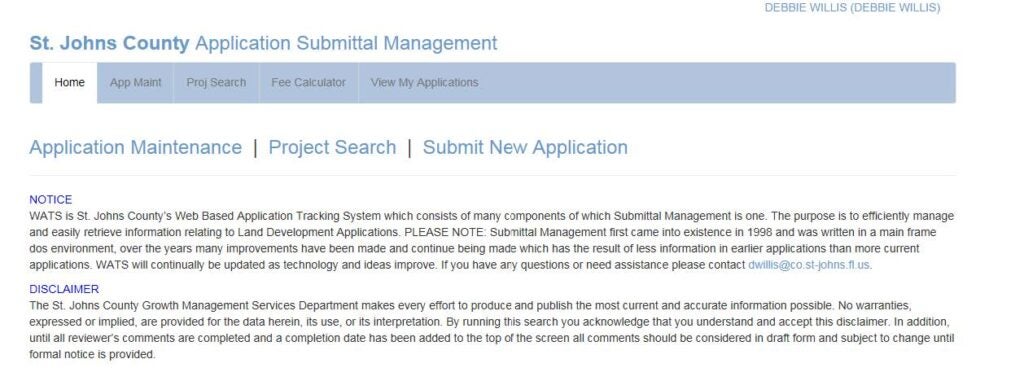
Applications that utilize the Online Application Process will be able to access the Electronic Response to Comments process through the Applicant’s User ID, within the View My Applications tab. See below snapshot.
Additional information on the ability to electronically manage the online application as it proceeds through the submittal management process will be forthcoming.